

I remember the first time I tried to connect my ultrabook at a client presentation. I had everything set up—except the tiny, elusive dongle needed for the projector. Moments like these are frustrating, especially when your sleek, powerful ultrabook isn’t quite so sleek anymore once you start juggling adapters. It hit me then: why do so many premium ultrabooks sacrifice useful ports for thinness and style? Isn’t it annoying to lug around multiple adapters just to get your work done?
Why Port Selection Matters in Today’s Ultrabooks
For professionals, students, and anyone who relies heavily on their laptop, having the right ports can make or break your productivity. Imagine a day with a remote meeting, a quick data transfer, and the need to connect an external monitor—all without reaching for an extra gadget. That convenience shouldn’t be a luxury; it should be a standard feature. Yet, many ultrabooks, despite their stellar performance, cut corners here.
Early on, I made the mistake of prioritizing slim design over ports. I bought a supposedly “ultra-portable” machine that had only USB-C and a headphone jack. No HDMI, no full-size USB. I thought I could adapt. But the real kicker was realizing how often I was digging through my bag for adapters, wasting precious time. That’s when I learned the hard way—a mistake supported by a study showing that insufficient port selection can decrease user satisfaction significantly. In fact, a recent survey indicates over 60% of laptop owners are frustrated by the lack of ports (source: TechGearShowcase).
Thankfully, there ARE ultrabooks out there that strike a balance—powerful, portable, and fully equipped with the ports you need. Today, I’ll guide you through some of the best options that won’t make you compromise on connectivity. Are you tired of the constant adapter hassle? If so, stick around; I’ll reveal how you can avoid the common pitfalls and find a machine that meets your needs without sacrificing utility.
Select Your Essential Ports Strategically
Assess Your Key Needs
Start by listing your primary tasks—do you frequently connect external displays, transfer large files, or use peripheral devices? For instance, if you often present via HDMI, ensure your ultrabook includes a full-size HDMI port or has a reliable adapter. Remember, a versatile port selection prevents last-minute scrambling for adapters during critical meetings.
Match Devices with Ports
Identify the devices you rely on daily. Gamers may prioritize high-speed USB ports and SD card readers, while professionals might need Thunderbolt 3/4, Ethernet, or multiple USB-A ports. This targeted approach ensures your ultrabook supports your workflow without compromise, akin to choosing the right tool for a specific job.
Opt for Models That Balance Port Selection and Portability
Research Top-Performers
Scan trusted sources or detailed reviews to find ultrabooks that offer comprehensive port options without excessive bulk. For example, some business ultrabooks with full-size ports demonstrate this balance effectively, making them ideal for users who dislike adapters.
Prioritize Build Quality
Quality ports ensure durability and reliable connections. Look for models with reinforced port areas, especially if you travel frequently or commute. Investing in a well-built ultrabook reduces frustration and hardware failures over time, similar to the durability promised in military-grade hinge ultrabooks.
Optimize Your Setup for Seamless Workflow
Use Docks and Hubs Wisely
Attach a versatile docking station or USB-C hub when stationary. This consolidates multiple ports into a single compact device, simplifying desk space and reducing cable clutter. For example, a high-security ultrabook with multiple ports paired with a dock can streamline presentations and data transfers.
Implement Cable Management
Use cable clips or sleeves to organize your cables, preventing damage and tangling. When I applied this during a hectic client pitch, I avoided fumbling with loose wires, allowing me to focus on presenting rather than troubleshooting connectivity issues. Its simplicity significantly improves professional fluidity.
Consider Future-Proofing Your Investment
Stay Ahead with Known Standards
Choose ultrabooks supporting emerging standards like Thunderbolt 4 or USB4, which ensure compatibility with future peripherals. For instance, models equipped with the latest fast connectivity technologies save you from imminent upgrades.
Balance Port Count with Portability
While a rich port selection is advantageous, avoid sacrificing too much portability. Seek models that integrate multiple functions into a slim profile—much like the sleek ultrabooks discussed in these reviews. This ensures you’re ready for diverse tasks without lugging around bulky hardware.
Many users fall prey to the misconception that all 2-in-1 laptops, ultrabooks, and the best laptops for students or business are designed equally. While mainstream narratives often celebrate their versatility and sleekness, few recognize the subtle nuances that can trip up even seasoned professionals. Let’s dig deeper into some overlooked pitfalls and advanced mistakes that can sabotage your tech investment.
Are You Missing the Underlying Trade-offs?
One common myth is that 2-in-1 devices seamlessly blend tablet convenience with laptop productivity. However, many models sacrifice core features—such as keyboard durability, port variety, or cooling efficiency—for portability and thinness. For example, some ultrabooks adopt fragile hinges or use lightweight materials that compromise longevity. An expert from this review highlights how certain models, despite their sleek profiles, struggle under real-world usage conditions. Recognizing these hidden trade-offs can save you both frustration and money.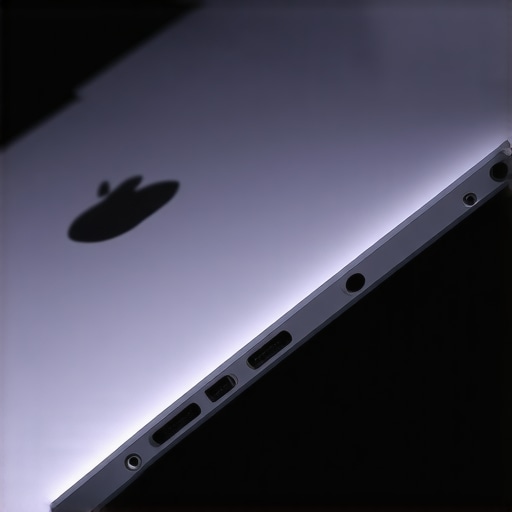
Understanding these nuances is crucial because many assume a slim, convertible device is inherently more durable or versatile. But in reality, thinness might come at the expense of robustness or upgradability. For the cautious buyer, knowing how hardware compromises impact daily performance is key to avoiding disappointment.
Prioritize Your Laptop’s Long-Term Performance with the Right Tools
Maintaining an ultrabook or a versatile 2-in-1 device requires more than just occasional updates. I personally rely on specialized software like CrystalDiskInfo to monitor my solid-state drives’ health, ensuring early detection of any potential failures. Additionally, Malwarebytes helps keep my system clean from persistent malware that can degrade performance over time. Regularly using these tools enables me to identify and address issues before they escalate, prolonging my device’s lifespan.
Implement Routine Maintenance Practices
Consistency is key. I schedule monthly disk cleanups with built-in tools like Windows’ Disk Cleanup to remove unnecessary files cluttering my storage. Also, I disable unnecessary startup programs to reduce boot times and system load. For physical maintenance, I use a soft brush to gently remove dust from vents and keyboard gaps, which prevents overheating and maintains optimal thermal performance. These simple, yet effective routines form the backbone of reliable long-term usage.
Optimize Software Updates for Stability
Staying current with the latest firmware and driver updates is crucial. I subscribe to manufacturer newsletters or visit my ultrabook’s support page regularly to download updates. These updates address known bugs, improve battery efficiency, and enhance compatibility with new peripherals. For instance, ensuring your Thunderbolt drivers are up-to-date can significantly improve external display performance. Regular updates are an investment in stability and security, especially for business users handling sensitive data.
How do I maintain my ultraportable device over time?
One method I swear by involves setting up a proactive monitoring system using tools like their recommended software. This approach helps catch early signs of hardware degradation or system slowdowns. Additionally, maintaining a clean power management routine—such as avoiding full discharge cycles and using the right charger—can significantly lengthen battery lifespan. Predicting future trends, I believe incorporating AI-driven hardware diagnostics will become standard, enabling even more effective real-time health checks. To stay ahead, try integrating these practices today and see your ultrabook perform reliably for years to come.
Three Surprising Lessons From Personal Chaos with Ultrabooks
One key lesson I learned is that obsessing over portability at the expense of essential ports can backfire during critical moments. It’s tempting to chase the slimmest ultrabook, but that narrow focus can leave you stranded without options when you need them most. Additionally, I discovered the importance of evaluating build quality and durability over superficial sleekness—cheap ports and flimsy hinges often mean long-term headaches. Lastly, I realized that a proactive approach to maintenance and updates isn’t just for tech geeks; it’s vital for keeping your ultrabook performing flawlessly and extending its lifespan beyond expectations.
My Go-To Resources for Selecting and Maintaining Top-Notch Ultrabooks
For honest reviews on ultrabooks with full port sets, I highly recommend this review of student-friendly 2-in-1 laptops. They highlight models that strike a remarkable balance between portability and connectivity. To stay on top of hardware health, I rely on tools like official driver update pages for my ultrabook, ensuring compatibility with new peripherals and security. Additionally, forums such as TechGearShowcase’s community are invaluable for sharing real-world experiences and troubleshooting solutions—making them my trusted source for ongoing learning and support.
Your Next Step Toward a Seamless Computing Journey
Choosing the right ultrabook can dramatically improve your productivity and peace of mind. Remember, investing in a device with comprehensive ports, robust build quality, and a commitment to long-term software health isn’t just smart—it’s essential. Don’t settle for the minimalistic trend that leaves you frustrated; instead, select a model designed for real-world demands. Embrace the challenge, and let your ultrabook serve as a reliable partner in your professional and personal growth. Ready to upgrade your setup? Dive into some of the trusted options and start transforming your workflow today. What’s the biggest connectivity annoyance you’ve faced with ultrabooks? Share your story below! انخفاض نستكمل حديثنا ونصبح أكثر وضوحًا حول كيف يمكننا اختيار ultrabook يدوم ويعمل بكفاءة عالية.

About the Author
Bruce Salamon
COO | Scaled B2B SaaS from $500K to 16 Countries
Bruce Salamon is a seasoned operations executive and the Chief Operating Officer at Coniq, where he has spent over eight years driving global growth and operational excellence. With a proven track record of scaling B2B SaaS platforms from early-stage revenue to international success across 16 countries, Bruce brings a unique, high-level perspective to the technical landscape. His experience navigating the demands of fast-paced tech environments in New York, London, and Paris has given him a deep understanding of the hardware that powers modern business. At laptops.techgearshowcase.com, Bruce leverages his extensive background in technology infrastructure to provide authoritative insights into high-performance computing and enterprise-grade hardware. He understands that for professionals, a laptop is more than a device; it is a critical tool for productivity and scaling operations. His reviews focus on reliability, performance, and the practical needs of the modern workforce. Bruce is dedicated to helping others navigate the complex world of technology to find the tools that best support their professional ambitions.
LinkedIn Profile
Reading this post really hit home; I’ve definitely experienced the frustration of lugging around multiple adapters just to get my ultrabook work-ready during presentations or remote setups. It’s surprising how many high-end ultrabooks still cut some essential ports for the sake of slimness, which often ends up hurting productivity. I’ve found that investing in models with built-in HDMI, SD card readers, and multiple USB ports not only saves time but also makes the workflow much smoother. I recall a recent trip where my portable dock saved me; I was able to connect everything easily without scrambling for cables. It makes me wonder, though, how many new ultrabooks are actually designed with real-world demands in mind versus trending towards extreme thinness? Have others found good portable docks that don’t add too much bulk but still provide multiple ports? I’d love to hear some personal recommendations or tips for balancing portability with connectivity.
That was a really insightful post. I’ve definitely been in situations where a lack of ports made simple tasks like transferring files or connecting a projector a hassle. I agree that many ultrabooks go for the sleek look at the expense of practical connectivity options. I’ve found that investing in a high-quality multi-port USB-C hub can really make a difference, especially one that supports power delivery and multiple video outputs. Have others experienced issues with certain hubs or docks not performing reliably? I’ve had mixed results, and it would be great to hear some recommendations for durable, versatile options that work seamlessly across different ultrabooks. I think the key is finding a good balance—so your setup doesn’t just look good but also supports productivity without constant adapter hunting.