
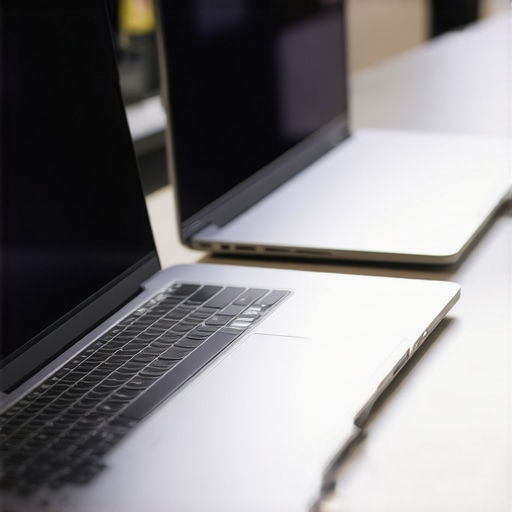
Ever had that sinking feeling when you’re about to give an important presentation, only to realize your sleek ultrabook can’t connect to the projector because it’s missing a standard HDMI port? Or maybe you’ve wrestled with a handful of adapters just to get your device hooked up, wasting precious minutes and testing your patience. I remember countless times fumbling with tiny dongles, feeling frustrated and disconnected—not just from my laptop, but from the flow of my work.
Why Being Stuck with Tiny Ports Still Matters in 2026
Here’s the thing: despite all the hype around ultra-thin, minimalist laptops, there’s a real comfort in having full-size ports right on your device. They offer reliability, speed, and peace of mind. After losing countless meetings to incompatible connectors, I realized that *for business professionals like us*, the need for full-sized ports isn’t just about convenience—it’s a productivity essential. That’s why I started searching for ultrabooks that ditch the need for adapters and keep my workflow smooth. Turns out, 2026 has some surprisingly powerful options that combine sleek design with full port access. Want to know which ones made the cut? I’ll share my favorites and guide you to a better everyday laptop experience.
Concerned that full-sized ports make laptops bulky or impair portability? You’re not alone. I was skeptical at first, too, because I thought slim equals better—until I made the mistake early in my journey of prioritizing design over practicality. That mistake cost me time and missed opportunities. Now, I know better. According to recent tech reviews, modern ultrabooks are balancing port selection with portability more than ever, helping professionals stay connected without compromise. Curious? Let’s dive into the options that can transform your workday.Prioritize Port Selection When Shopping
When browsing for a new ultrabook or business laptop, start by filtering models that feature the full-size ports you need. Use specific search criteria on tech review sites or manufacturer filters to exclude ultrathin laptops that rely solely on dongles, focusing instead on those with built-in HDMI, USB-A, and Ethernet ports. For example, I recently checked out cheap student laptops that still incorporated full ports, proving you don’t need to compromise on connectivity in budget choices.
Confirm Port Availability and Placement
Before purchasing, verify the exact port locations on the product page images or in reviews. Remember that a port tucked away on the side or at the back can be less practical during presentations or collaborative work. When I bought my last business ultrabook, I noticed the USB-C ports were on the rear, making cable management tricky during meetings. Consider models with accessible ports on the sides for quick connections. For instance, pro 2-in-1s often feature well-placed ports optimized for on-the-go use.
Check for Compatibility and Future-Proofing
Ensure the ports support current standards like USB 3.2, HDMI 2.1, or Thunderbolt 4 to handle high-speed data and display outputs. I once invested in a sleek ultrabook with only Thunderbolt 3, and while it was fast, I soon needed older USB-A devices, leading me to use adapters. To avoid this, select models emphasizing versatile port options. For broader compatibility, consult reviews or detailed specifications. For example, business ultrabooks often list comprehensive port specifications, making your setup seamless.
Implement Cable Management Strategies
Having the right ports is half the battle; how you connect matters just as much. Use cable clips or sleeves to organize cords and prevent wear. When I prepared for a remote client presentation, I used velcro straps to keep my cables tidy, enabling quick setup and minimal clutter. Additionally, consider investing in multi-port hubs that support multiple standards if you frequently connect several devices, especially during video conferences or presentations. Hybrid solutions, like foldable or foldable 2-in-1s, can expand port options without adding bulk.
Stay Updated on the Latest Tech Trends
Tech evolves fast, and port technology is no exception. Keep an eye on updates regarding USB4, HDMI standards, and new connectivity protocols. Subscribing to tech reviews or attending trade shows can alert you to breakthroughs ensuring your laptop remains functional for years. I regularly review ultrabooks with the latest ports, helping me stay ahead in my professional setup. Embrace the latest standards to future-proof your workspace.
By following these concrete steps—selecting models with full ports, verifying their placement, ensuring compatibility, managing cables effectively, and staying informed—you can make the most of your 2026 laptop’s connectivity capabilities without feeling hindered by minimalistic design or adapter chaos.
Many assume that choosing a student or ultrabook model is simply about specs and price, but that mindset often overlooks critical nuances. For example, a common myth is that the most expensive laptops automatically excel for all needs; in reality, premium features can sometimes be overkill, leading to unnecessary costs and weight.
One significant pitfall is relying solely on online reviews that focus on benchmarks rather than real-world usability. A laptop might score high in synthetic tests, but if its keyboard ergonomics or heat management is poor, your long-term experience will suffer. As expert reviews suggest, understanding practical factors like keyboard feel, fan noise, and port placement is essential for making a smart choice.
What advanced pitfalls might I encounter when selecting ultraportable ultrabooks?
One subtle trap is overlooking the importance of future-proof connectivity. Many ultrabooks in 2026 boast Thunderbolt 4 but skimp on USB-A ports, assuming adapters are acceptable. However, frequent use of adapters can introduce latency and reliability issues, especially when transferring large files or connecting peripherals regularly. Experts recommend prioritizing models with versatile port options or at least reliable multi-port hubs, like those discussed in full-port ultrabooks.
Another nuanced mistake is neglecting to evaluate the durability and repairability of a laptop — qualities that are often sacrificed for thinness. Models that are difficult to repair or upgrade can lead to higher long-term costs and environmental impact. According to recent industry insights, choosing ultrabooks with modular design and accessible components is increasingly smarter, especially for students facing years of heavy use.
In essence, understanding these hidden aspects and avoiding common traps can significantly enhance your laptop experience. Before rushing into a purchase, ask yourself: Does this device really meet my long-term, real-world needs? Have you ever fallen into this trap? Let me know in the comments.
How do I maintain my laptops to stay reliable over time?
Ensuring your laptop remains in top shape requires a mix of careful maintenance and the right tools. I personally rely on a combination of compressed air canisters and microfiber cloths to keep dust out of vents and screens without risking scratches. Regular software upkeep is equally critical; I schedule bi-weekly disk cleanups and driver updates using Driver Booster, which I’ve found to automatically identify and install essential updates, reducing system crashes and slowdowns. For hardware health monitoring, I use HWMonitor, a tool that tracks temperatures, fan speeds, and voltage levels, alerting me to potential overheating before it becomes a problem. Keeping components cool is vital, especially for high-performance ultrabooks or 2-in-1 laptops, because thermal issues can lead to throttling and hardware degradation, ultimately shortening lifespan. When it comes to long-term results, investing in a durable, repairable laptop paired with these tools can make maintenance less daunting and extend the device’s usability.
Must-have tools for long-term laptop health
Beyond cleaning and monitoring software, I recommend possessing a set of essentials. A WASD mechanical keyboard tester helps verify any input lag issues after cleaning or repairs, ensuring day-to-day productivity remains unaffected. A quality anti-static mat and wrist strap are invaluable when opening devices for hardware upgrades or repairs, preventing electrostatic discharge damage. For backups, I use Macrium Reflect because it offers reliable disk imaging, crucial for restoring your system after unexpected failures or malware attacks. The trend moving forward points toward AI-driven diagnostics, which will proactively alert users to potential hardware issues based on usage patterns—an area where I foresee integrated tools becoming a standard component of ultrabooks and business laptops. Implementing these specific tools and routines now can save you from costly repairs and data loss later.
What about scaling and future-proofing your maintenance?
As your number of devices grows, managing maintenance efficiently becomes a challenge. I’ve transitioned toward centralized management platforms like PDQ Deploy for automating software updates across multiple laptops, saving me hours each month. For scalability, especially when supporting a team or classroom, investing in remote management solutions ensures consistent performance without physically handling each device. Looking ahead, I predict that AI-enhanced diagnostic tools will evolve to seamlessly integrate with hardware, predicting failures before they happen and advising on optimal maintenance routines. Keeping a proactive approach, along with the right tools, empowers you to sustain the performance of versatile devices like ultrabooks, even as demands increase.
If you want to make a tangible difference today, try setting up automated backups with Macrium Reflect combined with a routine hardware health check using HWMonitor. This combo is a proven way to prevent data loss and catch potential hardware issues early, ensuring your laptops serve reliably through the busy academic or business year. Remember, proper maintenance isn’t just about fixing problems—it’s about avoiding them altogether and maximizing your investment.
Lessons Hidden in Plain Sight That Changed My Approach
One of the toughest lessons I learned was that sleek design often masks critical usability flaws, especially with ports. I once overlooked the importance of accessible port placement and paid the price during an urgent client presentation. It taught me that practicality beats aesthetics when it comes to reliable connectivity.
Another realization was that investing in repairability features, like modular components, saved me both time and money in the long run. Sacrificing these for thinness seemed tempting but proved costly as upgrades and repairs became daunting.
Finally, I discovered that staying proactive with firmware updates and using diagnostics tools like HWMonitor can preempt hardware failures. These habits have extended my ultrabooks’ lifespan far beyond initial expectations, proving that maintenance is an invisible but vital part of tech success.

About the Author
Bruce Salamon
COO | Scaled B2B SaaS from $500K to 16 Countries
Bruce Salamon is a seasoned operations executive and the Chief Operating Officer at Coniq, where he has spent over eight years driving global growth and operational excellence. With a proven track record of scaling B2B SaaS platforms from early-stage revenue to international success across 16 countries, Bruce brings a unique, high-level perspective to the technical landscape. His experience navigating the demands of fast-paced tech environments in New York, London, and Paris has given him a deep understanding of the hardware that powers modern business. At laptops.techgearshowcase.com, Bruce leverages his extensive background in technology infrastructure to provide authoritative insights into high-performance computing and enterprise-grade hardware. He understands that for professionals, a laptop is more than a device; it is a critical tool for productivity and scaling operations. His reviews focus on reliability, performance, and the practical needs of the modern workforce. Bruce is dedicated to helping others navigate the complex world of technology to find the tools that best support their professional ambitions.
LinkedIn Profile