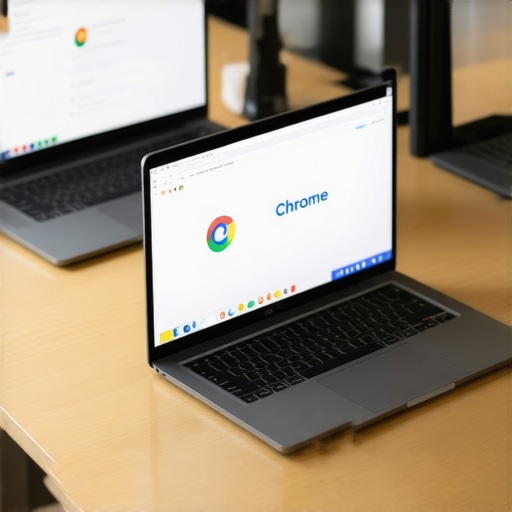
Ever been in the middle of a marathon brainstorming session, only to watch your laptop start to grind to a halt as Chrome tabs multiply like rabbits? I remember the exact moment I realized my trusty business ultrabook was not so trusty after all. I had over 50 tabs open—research articles, spreadsheets, communication apps—and suddenly, my screen froze. Frustration boiled over. It was a lightbulb moment: I needed a laptop that could handle my workload without causing me to frantically close everything just to breathe.
Why Most Laptops Fail Under Heavy Multitasking
For many of us, the pain point is real: juggling multiple Chrome tabs, documents, and apps without lag or crashes. The average consumer laptop simply isn’t built for this kind of heavy multitasking. According to a study by PCMag, many mainstream ultrabooks struggle when opened with more than 20 browser tabs—leading to sluggish performance and, sometimes, system crashes. The key is to find a machine designed for resilience, speed, and durability, tailored for those who refuse to compromise. Today, I promise to guide you through selecting the best ultrabooks with sturdy frames and powerful internals that can actually handle your open tabs without breaking a sweat.
Will These Ultrabooks Survive My Overloaded Browser?
One mistake early in my journey was underestimating the importance of RAM and storage. I bought a sleek, promising ultrabook that looked good and seemed capable, but it had only 8GB of RAM. When I pushed it to 50+ Chrome tabs, performance tanked. It turned out that not all ultrabooks are created equal. The secret lies in choosing models with higher RAM, fast SSDs, and aggressive thermal management—features that ensure your laptop does more than just look pretty. If you’re tired of the dreaded lag when your workflow demands multitasking, keep reading. We’ll explore specific models that check all these boxes and more, ensuring your portable workstation is up to the challenge. Are you facing this exact dilemma? Let me help you find the perfect match to keep your productivity flowing smoothly.
Select the Right Hardware for Your Needs
Start by pinpointing your workload and matching it with hardware specifications. If you’re a student tackling AI tasks, consider a laptop like those found here that offers powerful CPUs and ample RAM. Think of your laptop as a race car—engine size and build determine how fast and reliably it handles multiple tasks. Opt for models with at least 16GB RAM for seamless browsing, multitasking, and running heavy applications, especially if you’re using it for work or study.
Optimize Storage and Memory Management
Ensure your machine has an SSD for quick access and data transfer. When I upgraded my main work ultrabook from a traditional HDD to an SSD, my system’s responsiveness skyrocketed, making opening dozens of tabs feel instantaneous. Treat your storage like a well-organized toolbox—keep frequently accessed files on the SSD, and clear out unnecessary data regularly. This prevents system slowdowns and ensures your laptop remains a reliable partner during intense multitasking sessions.
Configure Your Browser and Apps for Performance
Don’t just rely on hardware; tighten your software’s performance. Use extensions to disable unnecessary scripts and ads that bog down Chrome. If you’re juggling multiple apps, set them to auto-launch only when needed, and close background ones to free up resources. This is akin to managing your energy—preserving power and focus for when it really matters. Ever opened dozens of Chrome tabs and watched your laptop struggle? Using task manager to monitor resource hogs or adjusting your browser’s cache settings can make a tangible difference.
Utilize External Accessories and Peripherals
Enhance your multitasking ability by adding external monitors, keyboards, and mice. Think of this setup as expanding your workspace—multiplying your surface area to spread out applications and spreadsheets. External monitors, especially those with high refresh rates and anti-glare coatings, can significantly improve your efficiency. Connecting a portable monitor to your ultrabook, like the models highlighted here, creates a dual-display environment that keeps your workflow flowing smoothly even under heavy load.
Maintain Your System Habitually
Regularly clean your laptop’s internals to prevent dust buildup, which can cause thermal throttling and reduce performance. Use software tools to monitor CPU and GPU temperatures; if they spike during multitasking, consider upgrading your cooling solutions or cleaning the vents. Think of this as regular health checkups for your machine—preventing small issues from becoming crippling failures and ensuring long-term reliability.
Prioritize Security for Heavy Workloads
When multitasking with sensitive information, security isn’t optional. Use laptops with integrated biometric locks—like those reviewed here. These ensure that, even if you’re juggling multiple documents and open tabs, your data remains protected from prying eyes. Think of security features as a vault—integral to safeguarding your productivity without slowing you down.
While many believe that 2-in-1 laptops are just gimmicks or overly fragile flexi-devices, the reality is far more nuanced. The popular myth that all convertibles lack durability or performance fails to recognize the innovations in high-end models, which utilize military-grade hinges and reinforced chassis—see the options highlighted here. Yet, one trap many overlook is equating versatility with the lowest price point. Cheaper 2-in-1s often compromise on essential specs like RAM, battery life, or build quality, leading to frustrations rather than productivity. Always consider models with reinforced hinges and premium materials so that your device withstands daily stressors.
For students, it’s tempting to assume that the cheapest convertible suffices, but this mindset ignores the true benefits of premium ultrabooks which combine durability with powerful internals. Advanced users should evaluate the touch and stylus responsiveness—crucial for digital art or note-taking—and this is where many falter, settling for models with sluggish screens or poor stylus integration.
People often get mixed up about what makes a laptop “best.” It’s not solely about specs but also about tailored purpose—whether for heavy multitasking, security needs, or portability. For instance, if privacy is your priority, check the ultrabooks with physical privacy shutters. Overlooking security features can be a costly mistake, especially for business users handling sensitive data.
Do you think that a slim design always equals fragility? Think again. Many modern ultrabooks and business laptops incorporate titanium or carbon fiber elements to enhance ruggedness without bulk—details worth exploring in models like those found here. Still, beware the “oops” trap: assuming that manufacturers’ claims about durability are always accurate. Real-world tests and user reviews offer clearer insight.
What about misconceptions around performance? It’s common to believe that 8GB of RAM is enough for multitasking, but in practice, heavy multitaskers, especially students running AI tools or media editing, need at least 16GB. Skimping here can lead to sluggish workflows and system crashes. Additionally, SSDs must be prioritized over HDDs for speed, especially when managing large files or multiple applications.
Lastly, advanced users often ask: How do I future-proof my investment? Investing in upgradable RAM and dual-storage options provides some cushion, but more importantly, choosing models with USB-C, Thunderbolt 4, and Wi-Fi 6E ensures long-term compatibility with evolving standards. Some models excel at this; learn more through ultrabooks with cutting-edge connectivity features.
Have you ever fallen into this trap? Let me know in the comments.
Mastering Long-Term Laptop Performance
To ensure your 2-in-1 laptop, ultrabook, or business machine remains reliable over years of heavy use, adopting a set of proven tools and routines is crucial. I personally rely on specific utilities like CPU-Z to monitor real-time hardware health and HWiNFO for detailed system diagnostics. These programs empower me to identify thermal bottlenecks or failing components before they become critical problems. Regularly checking CPU and GPU temperatures—even during intense multitasking—helps me preempt overheating issues that could throttle performance, especially during prolonged work sessions.
Another tool I find indispensable is CCleaner. Routine cleaning of cache files, temporary data, and registry entries keeps my system lean and responsive. I recommend setting weekly reminders to run these cleaning routines, which prevent unnecessary system slowdowns and extend hardware lifespan. Over time, device debris and software clutter can reduce efficiency—a risk that can be mitigated by these regular maintenance practices.
How do I maintain my laptop’s performance over time?
Implementing scheduled updates is key. Always keep your operating system and firmware up to date to patch security vulnerabilities and optimize hardware compatibility. For Windows users, I enable automatic updates and manually check for driver updates through manufacturer support sites. Additionally, periodically reviewing startup programs with tools like Task Manager enables me to disable unnecessary background apps that consume memory and processing power. This proactive approach ensures that my machine remains agile even during demanding tasks such as digital art creation or data analysis.
For data storage, I prefer using external SSDs for backups, which I rotate weekly. This strategy not only protects against data loss but also reduces the load on internal drives—helping my system run efficiently. Plus, having an external backup is a lifesaver during hardware failures or accidental file deletions. Pairing these routines with hardware upgrades—like expanding RAM where possible—can drastically extend your device’s productive lifespan.
Anticipating Future Improvements
Looking ahead, I predict that AI-optimized system maintenance tools and smarter thermal management will become standard features, simplifying long-term upkeep. Devices will likely incorporate self-healing algorithms to detect and correct minor errors autonomously, reducing downtime. Until then, equipping yourself with specific utilities and adopting disciplined maintenance routines remains the best way to keep your laptop performing at its peak for years to come. Ready to boost your regimen? Start by integrating hardware monitoring with CPU-Z and system cleaning with CCleaner, then observe the difference in responsiveness and stability.
Lessons I Had to Learn the Hard Way About Versatile Laptops
One unforgettable lesson was realizing that not all convertible laptops are created equal—many sacrificed durability and performance for style and flexibility, leaving me frustrated during demanding tasks. I discovered that rugged hinges, reinforced chassis, and high-quality materials are non-negotiable for longevity and reliability. Also, I learned that splurging a bit more upfront on models with higher specs prevents constant upgrades and replacements down the line, saving time and money. Lastly, trusting reviews from real users over flashy ads helped me avoid models that looked good but couldn’t handle the realities of daily heavy multitasking.
Tools That Changed How I Maintain Productivity
My go-to tools include CPU-Z for real-time hardware health checks, which alerted me early to thermal issues. I also rely on HWiNFO for comprehensive system diagnostics, especially during intensive multitasking sessions. To keep my storage optimized, I use CCleaner weekly, which keeps unnecessary files from bogging down performance. These tools, combined with routine updates and system reviews, have extended my ultrabook’s lifespan and kept performance steady amid heavy workloads.
Embrace the Future—Your Laptop Will Thank You
Choosing the right 2 in 1 laptop isn’t just about specs; it’s about aligning with your resilience and productivity needs. By adopting disciplined maintenance routines and investing in models that can withstand the daily grind, you’re setting yourself up for long-term success. Remember, a well-cared-for ultrabook can be your loyal partner through years of demanding work, creative pursuits, or studies. The next step? Dive deeper into the latest reviews and see which models meet these standards. Your perfect portable powerhouse is within reach—start now, and enjoy the journey to better productivity and durability.

About the Author
Bruce Salamon
COO | Scaled B2B SaaS from $500K to 16 Countries
Bruce Salamon is a seasoned operations executive and the Chief Operating Officer at Coniq, where he has spent over eight years driving global growth and operational excellence. With a proven track record of scaling B2B SaaS platforms from early-stage revenue to international success across 16 countries, Bruce brings a unique, high-level perspective to the technical landscape. His experience navigating the demands of fast-paced tech environments in New York, London, and Paris has given him a deep understanding of the hardware that powers modern business. At laptops.techgearshowcase.com, Bruce leverages his extensive background in technology infrastructure to provide authoritative insights into high-performance computing and enterprise-grade hardware. He understands that for professionals, a laptop is more than a device; it is a critical tool for productivity and scaling operations. His reviews focus on reliability, performance, and the practical needs of the modern workforce. Bruce is dedicated to helping others navigate the complex world of technology to find the tools that best support their professional ambitions.
LinkedIn Profile